
For site owners
Put the tag on your site
Where to find your code, where to paste it, and what to do when nothing appears.
The tag is a short piece of code that turns a zone into an actual ad on your page. You paste it once, on every page where you want that ad to appear. Nothing shows until you do.
Where to find your tag
During setup, the Put it on your site step shows the code for your first slot with a copy button, and turns green, saying Live, the moment the slot loads on a real page.
After that, and for every other slot, switch to the Publisher view and open Zones from the menu. Find the zone you want and click the code icon on the right of its row, labelled View Zone Tag. A box opens with your code in it.
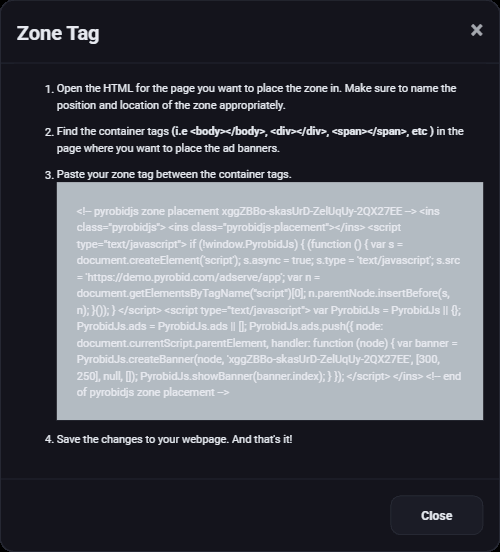
Select the whole grey box and copy it. Copy all of it. The comment lines at the top and bottom are harmless, but the two script blocks in the middle both have to be there.
What you are pasting
It looks like this. Yours will have a different ID and your own web address.
<!-- pyrobidjs zone placement YOUR-ZONE-ID -->
<ins class="pyrobidjs">
  <ins class="pyrobidjs-placement"></ins>
  <script type="text/javascript">
    if (!window.PyrobidJs) {
      (function () {
        var s = document.createElement('script');
        s.async = true;
        s.type = 'text/javascript';
        s.src = 'https://your-network.example.com/adserve/app';
        var n = document.getElementsByTagName("script")[0];
        n.parentNode.insertBefore(s, n);
      }());
    }
  </script>
  <script type="text/javascript">
    var PyrobidJs = PyrobidJs || {};
    PyrobidJs.ads = PyrobidJs.ads || [];
    PyrobidJs.ads.push({
      node: document.currentScript.parentElement,
      handler: function (node) {
        var banner = PyrobidJs.createBanner(node, 'YOUR-ZONE-ID', [300, 250], null, []);
        PyrobidJs.showBanner(banner.index);
      }
    });
  </script>
</ins>
<!-- end of pyrobidjs zone placement -->
It is doing three things, in plain terms:
- The
<ins>element is the hole in your page. The ad gets drawn inside it. - The first script loads the ad server's code, once per page, however many zones you have on it.
- The second script says which zone this hole is and how big the ad
should be. The numbers
[300, 250]are the size you chose when you made the zone.
Putting it on your page
- Open the HTML of the page you want the ad on.
- Find the spot where the ad should appear. It has to be inside the
<body>, and usually inside whatever<div>holds that part of your layout: your sidebar, your header, between two paragraphs of an article. - Paste the whole tag there.
- Save and upload the page.
Load the page in a browser. If an advertiser is running and your zone matches them, you will see the ad. If nothing appears, that is usually correct behaviour rather than a fault, and the next section explains why.
Each zone gets its own tag. If you have three ad slots, you copy three different tags. Pasting the same tag in three places gives you the same ad three times and the reports will not be able to tell them apart.
Using WordPress or a site builder
Anywhere you can put custom HTML will work. In WordPress, add a Custom HTML block, or use a widget area if you want the ad in your sidebar on every page. What will not work is pasting the tag into a normal text or paragraph block, because those strip out scripts. If you paste the tag and see the code itself printed on your page, that is what happened.
Nothing is showing up
Work down this list in order.
- The slot is empty and the space has collapsed
- No advertiser wanted it. This is normal on a new network and on quiet pages. Check that you have at least one approved ad running, and that your zone's floor price is not higher than anyone is bidding.
- The code is printed on the page as text
- Your editor escaped it. Use a raw HTML or custom HTML block instead of a text block.
- Ads appear for you but not for other people
- Usually an ad blocker at the other end. Try a different browser or a private window.
- The page loads but the ad area stays blank forever
- Open your browser's developer console and look for an error mentioning
adserve. If the request is being blocked or refused, the tag is pointing at the wrong web address. Copy the tag again from the Zones screen rather than editing it by hand.
Keep the tag as it is
Do not change anything inside the tag, and in particular do not change the zone ID. That ID is how the server knows which of your zones is asking, which floor price to enforce and who to credit the money to. A zone ID from one network does not work on another, so the tag cannot be lifted and run on somebody else's site.
If you need a different size, make a new zone and use its tag. Editing the numbers in the tag by hand will ask for a size the zone is not set up for, and you will get nothing.
Run all of this on your own site.
Every screenshot above is the real product. Your advertisers see the same screens under your brand, and on your own domain from the Pro plan.
Start free trial14 days free. Your existing ads keep running. Cancel anytime.