
For advertisers
Track sales, not just clicks
One line of HTML on your thank you page, and what it unlocks.
Clicks tell you people were interested. Conversions tell you they actually bought. If you are selling anything, this is the one optional feature worth the twenty minutes it takes to set up, because without it you are judging your ads on the wrong number.
What it does
You paste one line of HTML onto the page people reach after they buy, the "thank you for your order" page. When somebody lands there after clicking your ad, that gets counted as a conversion and joined back to the campaign, the banner and the zone that sent them.
Three numbers on your reports only work once this is in place:
- Conversions. How many sales the campaign produced.
- CR, the conversion rate. What share of clicks turned into sales.
- CPA, cost per acquisition. What each sale cost you in ad spend. This is the number that decides whether a campaign is worth running.
Turn it on
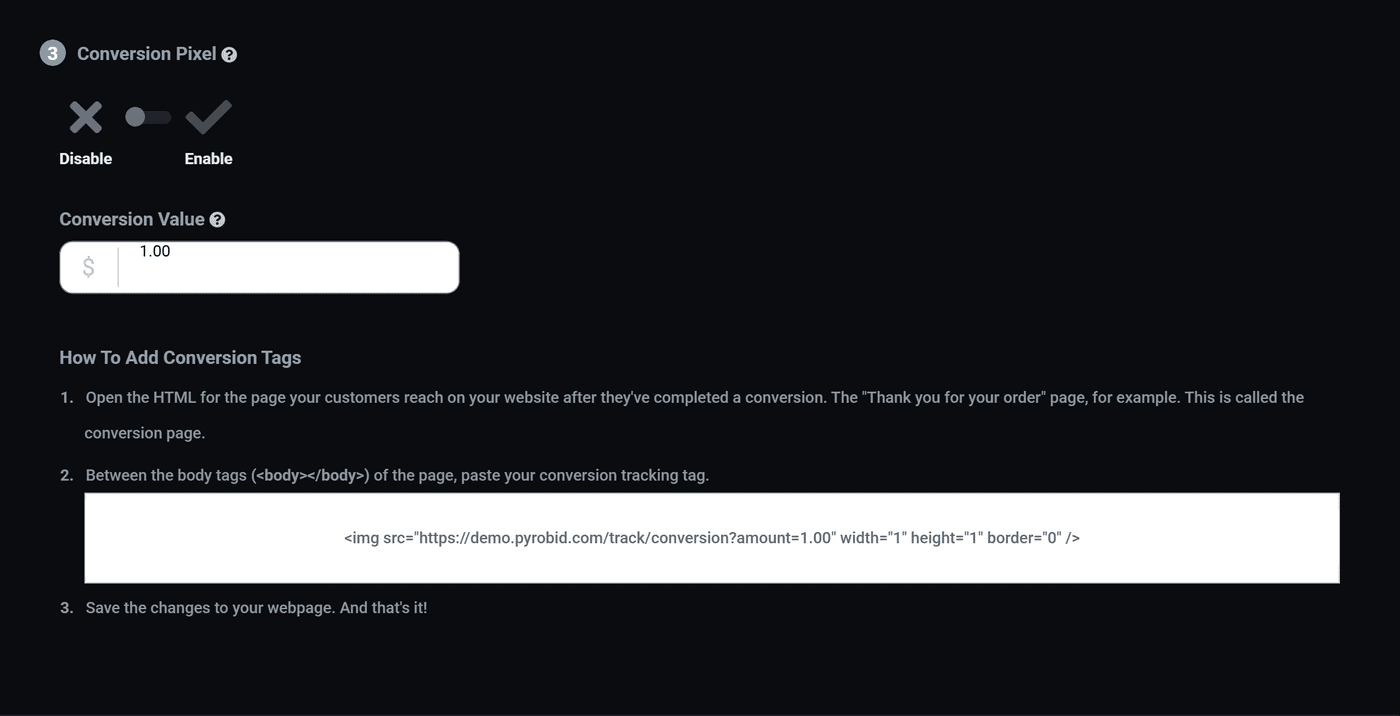
On the Creative step, find Conversion Pixel and switch it to Enable.
Set the conversion value
Conversion Value is what one sale is worth to you on average. It is not used to charge you anything. It is used to work out whether the campaign made money, which is how the Revenue, Profit and ROAS columns get their numbers.
Use your average order value, or your margin on an average order if you know it. A rough figure is far better than leaving it at 1.00 and reading numbers that mean nothing.
Put the tag on your thank you page
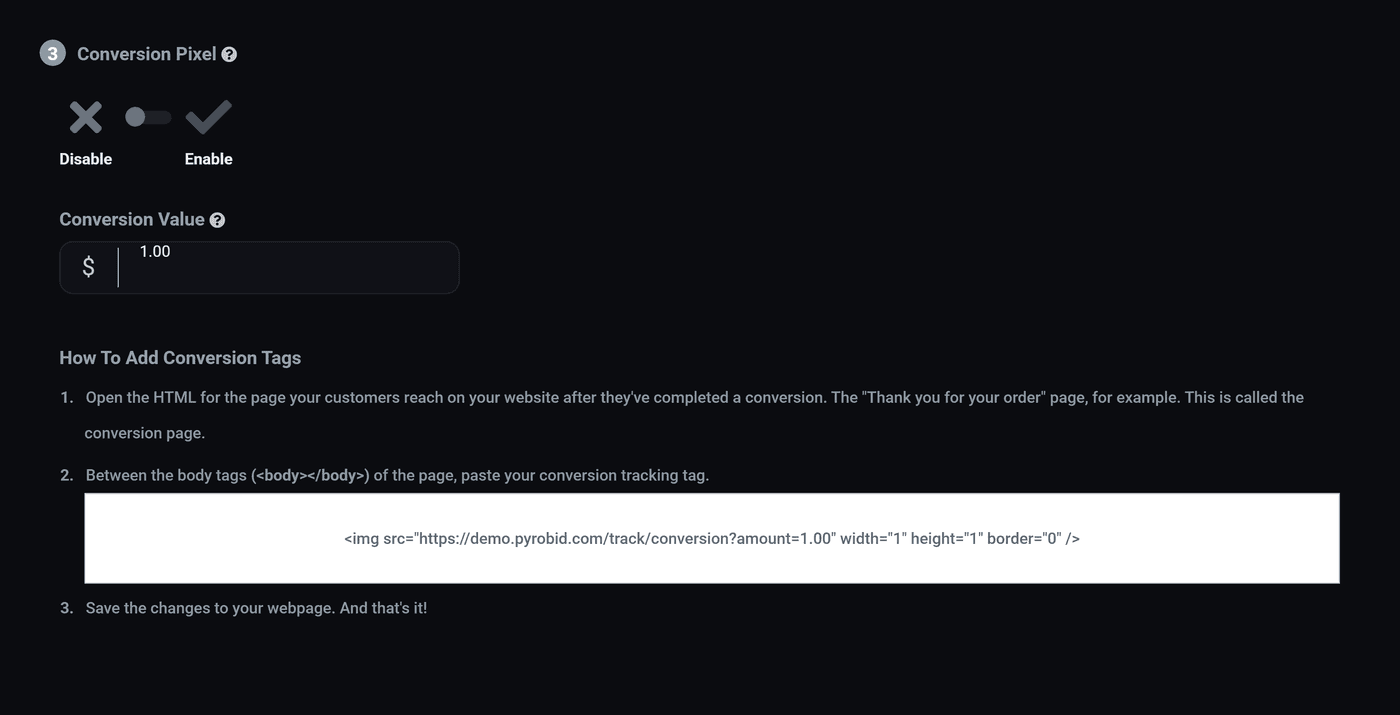
Press How To Add Conversion Tags and you get the line to copy. It looks like this:
<img src="https://yourname.pyrobid.com/track/conversion?amount=1.00" width="1" height="1" border="0" />Then, on your own website:
- Open the page people reach after they have bought. The order confirmation or thank you page.
- Paste that line anywhere between the
<body>and</body>tags. - Save the page.
That is the whole job. It is a one pixel invisible image, so nothing appears on the page and nothing moves.
Recording the real amount
The amount in that address is what gets recorded as the value
of the sale. Leave it as it is and every sale counts the same.
If your orders vary a lot, and your shop can print the order total into the page, replace the number with it. A $400 order and a $12 order then show up as what they actually were, and your ROAS starts telling you the truth. Exactly how you do that depends on your shop software, so this is a question for whoever built your site.
Checking it works
- Open your own thank you page directly in a browser.
- Wait a few minutes.
- Look at your reports. A conversion should appear.
A conversion is only counted for somebody who clicked one of your ads first. Loading the page yourself from a browser that has never clicked your ad may record nothing, and that is correct behaviour rather than a fault. The surest test is to click your own ad, buy something, and watch the number move.
If nothing is being counted
- Check the tag is really on the live page and not only in a draft.
Right click the page, View Source, and search for
track/conversion. - Check it is inside the body of the page, not in the head.
- Check the campaign has the pixel enabled. It is set per campaign, not once for the account.
- Give it time. Reports are not instant.
Where to go next
- Read your campaign numbers, which is where conversions, CR, CPA and ROAS turn up.
Run all of this on your own site.
Every screenshot above is the real product. Your advertisers see the same screens under your brand, and on your own domain from the Pro plan.
Start free trial14 days free. Your existing ads keep running. Cancel anytime.