
For advertisers
Choose who sees your ad
All eight targeting panels, and why adding fewer of them usually works better.
Step 3 of Create Ad decides who your ad is allowed to reach. It starts wide open, and every choice you make here makes it narrower. That is the whole thing in one sentence, and it is the part people get wrong most often.
It starts as everyone

Leave it exactly like that and your ad can appear to anyone, in any country, on any device, on any page that has a slot your banner fits. For a first campaign that is usually the right answer. You learn more from a week of broad traffic than from a week of guessing.
Adding a filter
Press Add targeting and pick a dimension. Each one you add appears as its own row above, and you can remove a row at any time.
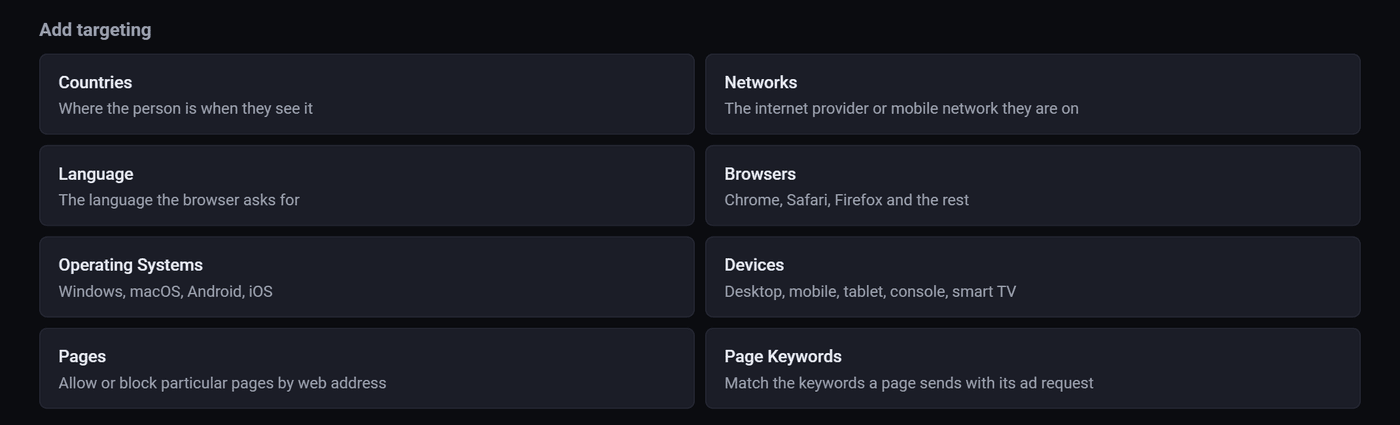
How every panel works
All eight rows behave the same way, so learn it once.
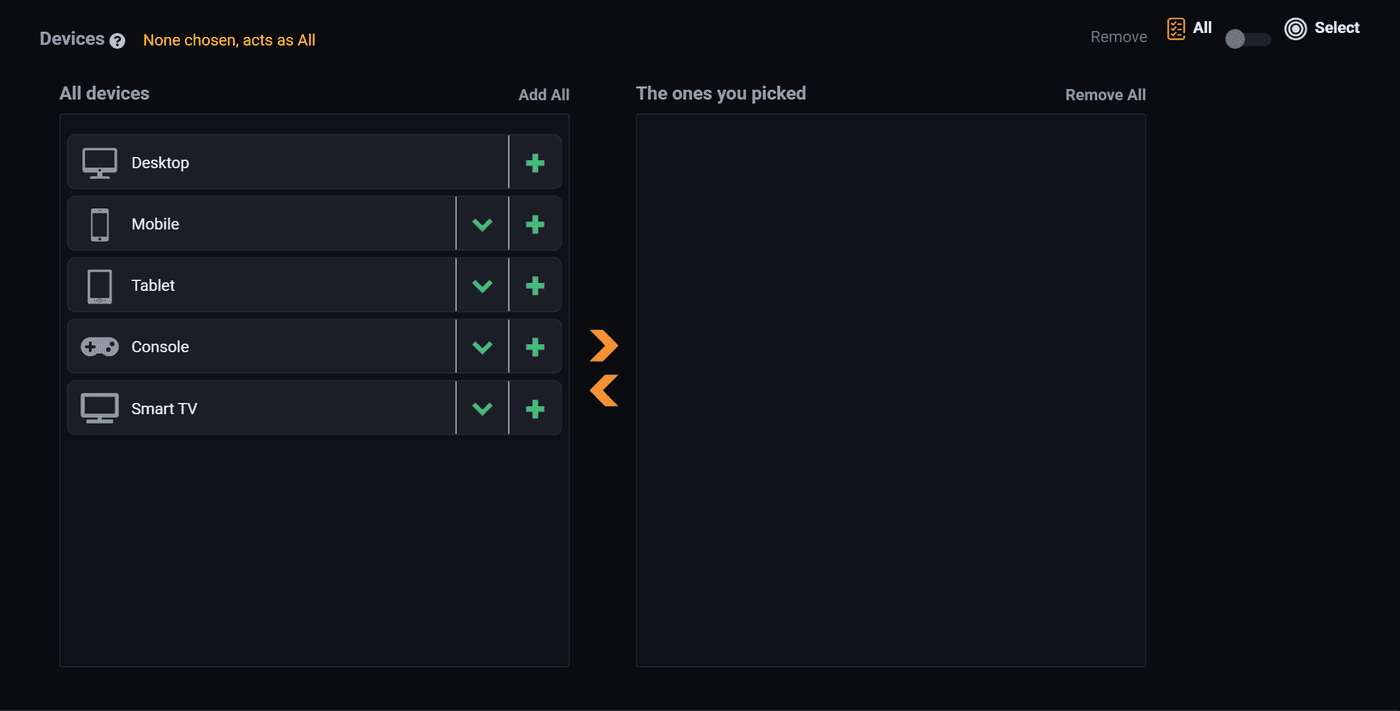
- The switch at the top right flips between All and Select. On All, the row does nothing and the ad runs everywhere.
- The left list is everything that exists. The right list is what you picked. The green plus moves one across, and Add All moves the lot.
- Remove deletes the whole row and puts you back to no filter on that dimension.
- An empty right hand list acts the same as All. The row only starts limiting anything once something is in it.
Some lists have a small arrow beside an entry. That opens the level below, so Mobile opens into brands and models, and a country opens into its regions. You can target a whole country or one city inside it.
The eight dimensions
Countries
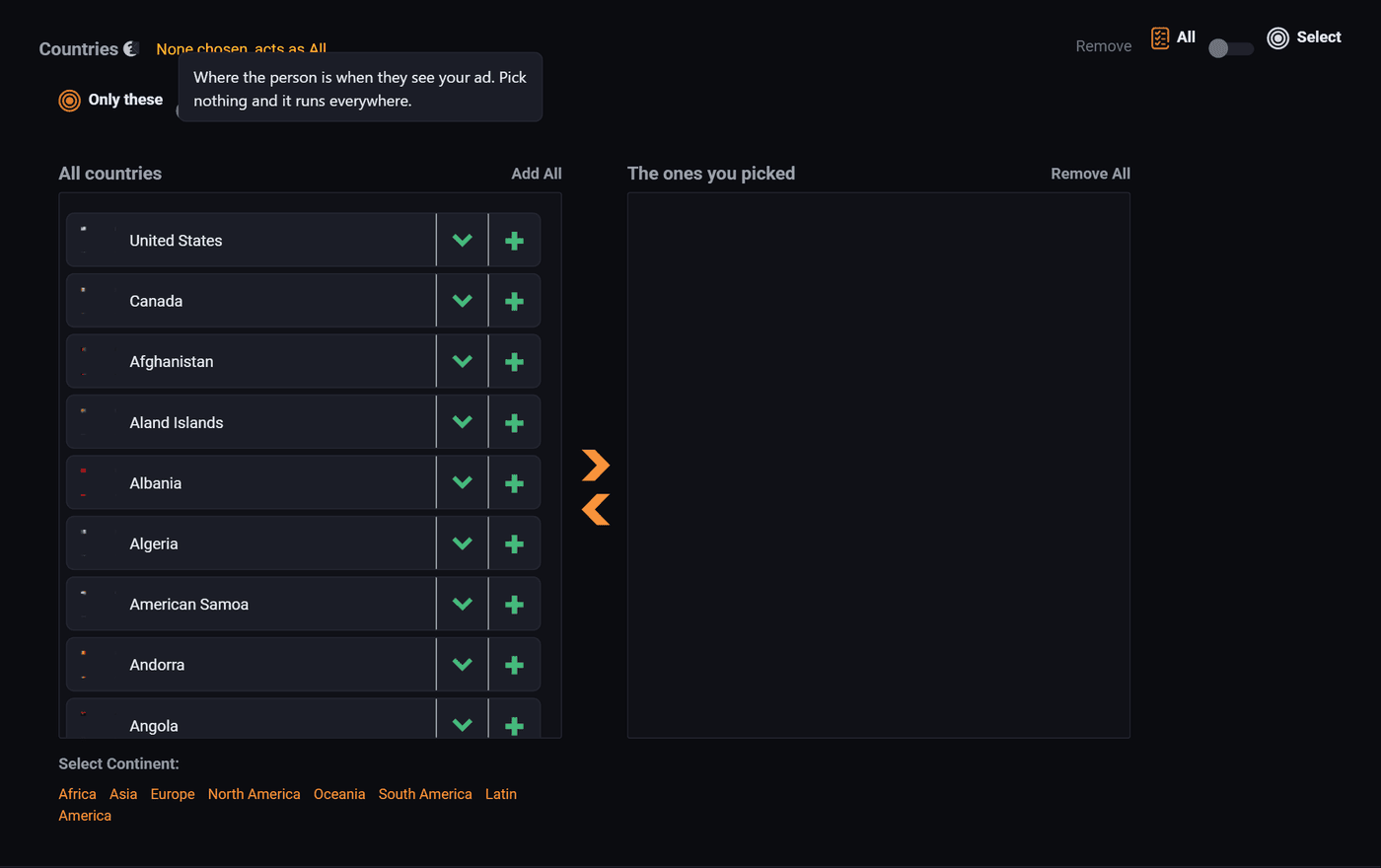
The most useful filter in the list, and the only one most campaigns need. Set it when you ship to particular countries, when your landing page is in one language, or when your offer is only legal somewhere. Opens into regions and cities if you need to go finer.
It is also the filter that moves your money furthest. Your bid is a price for a thousand views in the United States, and every other country costs a share of it, so the same bid buys several times more views in a cheap market than an expensive one. The next step of the wizard shows what a thousand views costs in each country at the bid you have typed, so none of that has to be taken on trust.
Networks
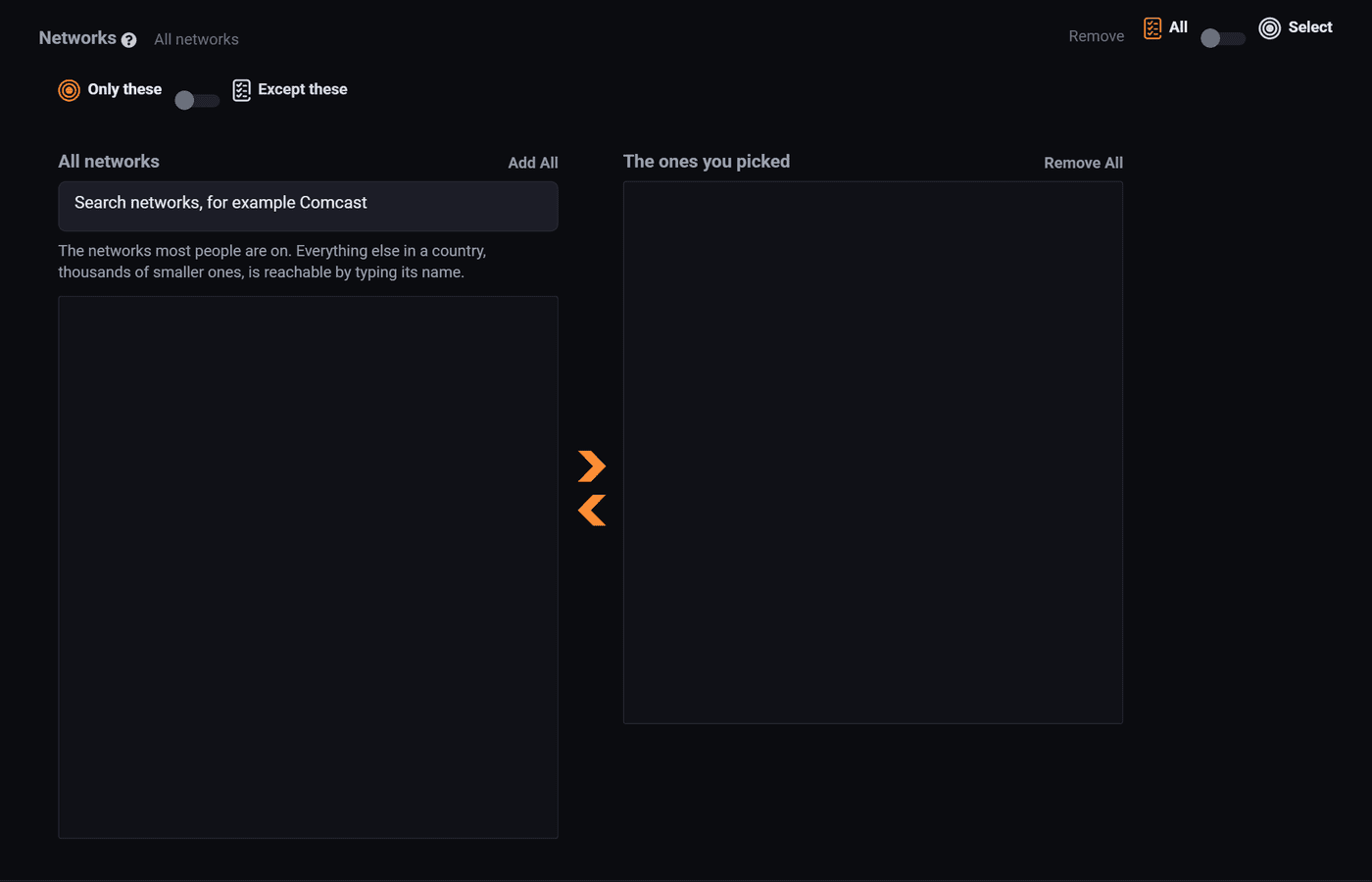
Mostly used by people selling something tied to a carrier, like a mobile plan or a device upgrade. If that is not you, skip it. It is the fastest way to shrink a campaign to nothing by accident.
Language
The language the visitor's browser asks for, which is usually the language they read. Worth setting when your landing page is in one language and the country you are buying has several. Canada and Switzerland are the obvious cases.
Browsers
Chrome, Safari, Firefox and the rest. Only worth setting if your landing page or your product genuinely needs a particular browser. Almost nobody needs this.
Operating systems
Windows, macOS, Android, iOS. The normal reason to use it is selling an app that only runs on one of them. Pointing an App Store link at Android visitors wastes every click you pay for.
Devices
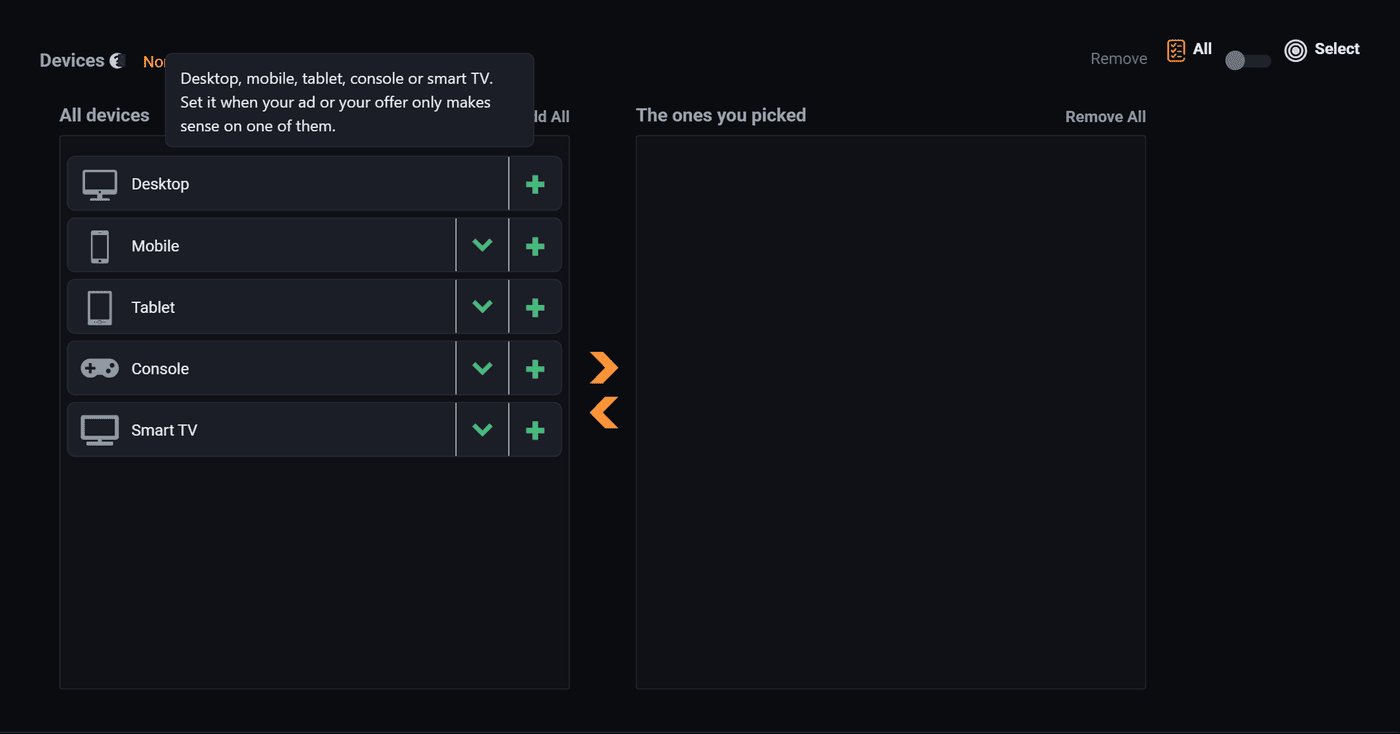
Set it when the thing you are selling only makes sense on one of them, or when your landing page is genuinely broken on phones. Be honest about the second one: phones are most of the traffic on most sites, and cutting them out cuts most of your reach.
Pages
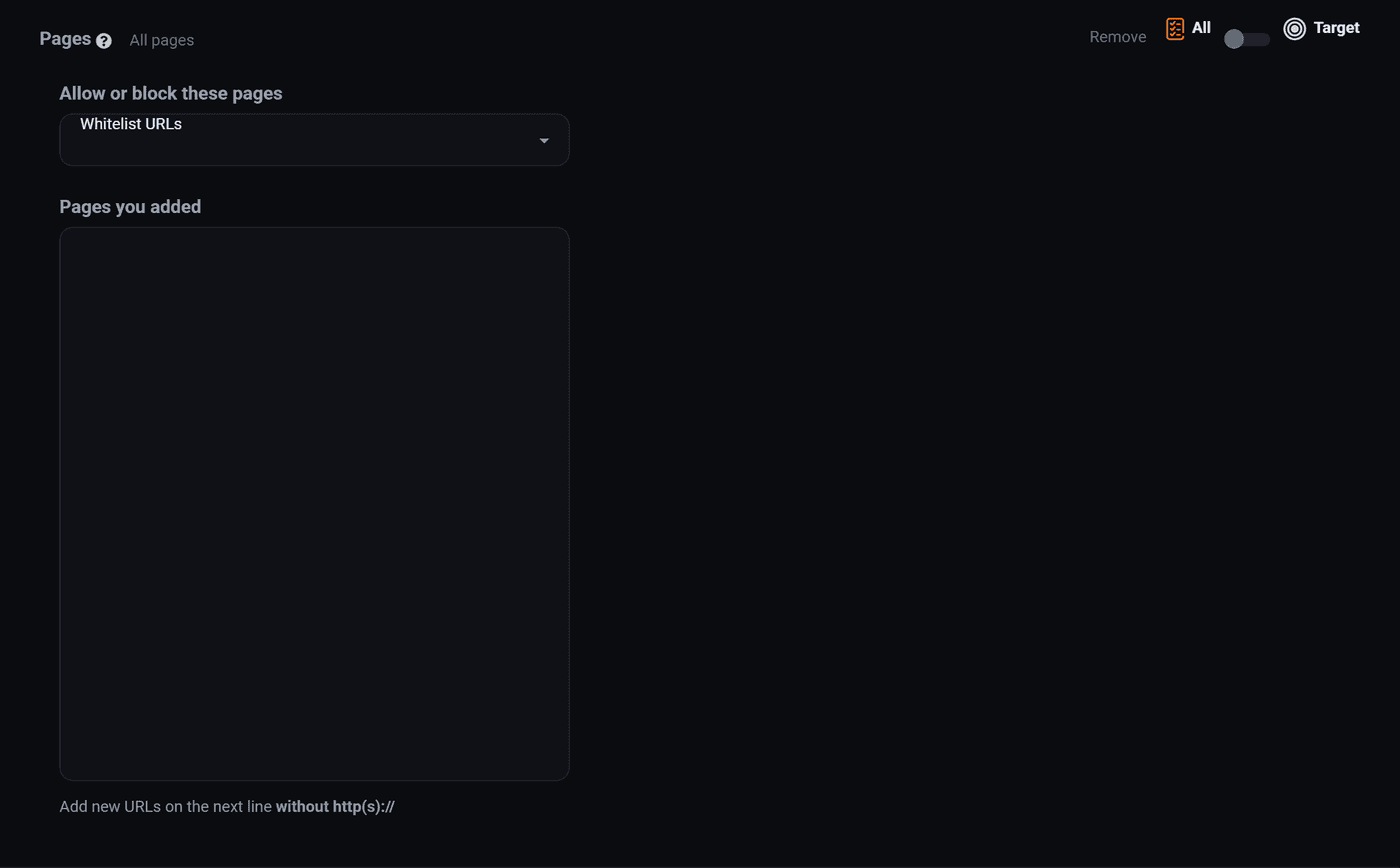
Works on individual pages of the sites you are buying, by address. The usual use is staying off a page you do not want to sit next to, or the opposite, buying only one article that does well for you.
Page keywords
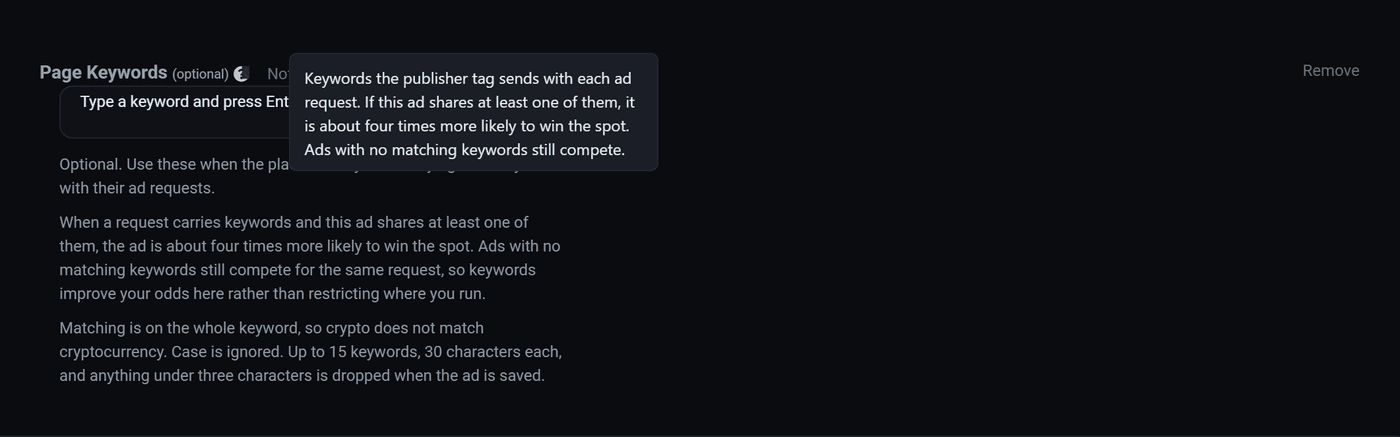
Publishers can attach keywords to a slot, describing what the page is about. Put keywords here and your ad only runs where at least one of them matches. It is the closest thing to buying by subject rather than by site. It only works on sites whose owner bothered to set keywords, so treat it as a bonus rather than a plan.
The mistake everyone makes
Adding filters feels like being careful. It is not. Every row you add multiplies against the others, and four reasonable looking filters can leave you with a few hundred people a day and a campaign that looks broken.
If your ad is barely getting shown, come back here first and start deleting rows. Most of the time the problem is not your bid, it is that you asked for Chrome users in Belgium on tablets who speak French.
A good rule: add a filter only when you can say out loud what it costs you to ignore. "I only ship to Canada" is a reason. "Desktop feels more serious" is not.
Where to go next
- Set your budget and bid, which is the next step of the wizard.
- Make your first ad, if you landed here in the middle and want the whole walkthrough.
Run all of this on your own site.
Every screenshot above is the real product. Your advertisers see the same screens under your brand, and on your own domain from the Pro plan.
Start free trial14 days free. Your existing ads keep running. Cancel anytime.