For site owners
Make your first ad slot
Choose the shape, set a floor price, and get the code.
An ad slot, called a zone here, is a space on your website where ads appear. This page walks through making one in the full zone editor. It takes about three minutes.
Your first slot is usually made for you: the setup screen you see the first time you log in asks its size, its price and what shows while nothing is booked, then makes it. Quick start covers that screen. Every slot after the first, and every option setup leaves out, is made here.
Switch to the Publisher view with the toggle at the top of the page, then open Create Zone in the left hand menu. The form has three steps and a bar on the right showing where you are.
Step 1. Pick the shape
What kind of ad
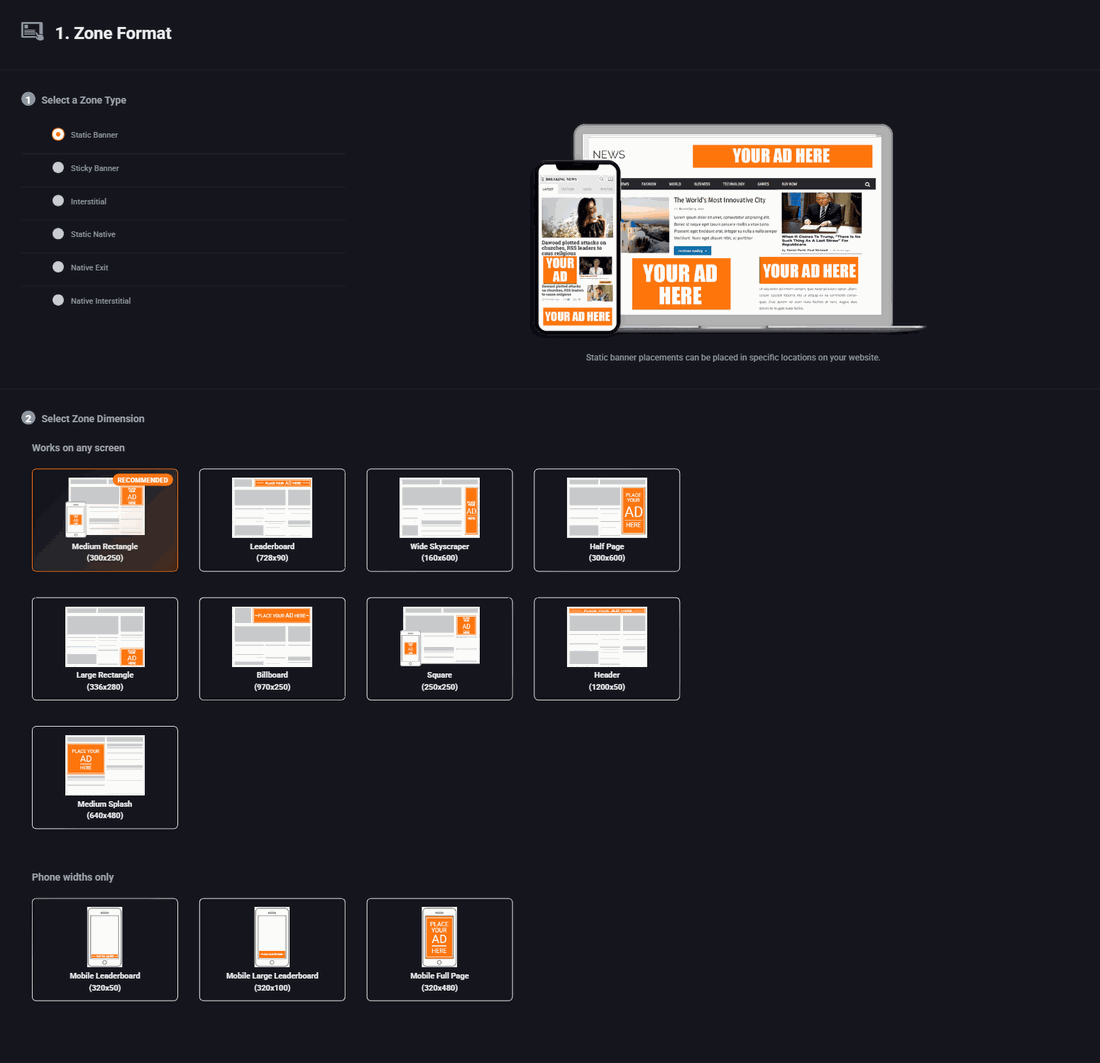
Six choices. Most people want the first one.
- Static Banner
- A normal ad that sits in one place on the page. Start here.
- Sticky Banner
- Sticks to an edge of the screen and stays there while the visitor scrolls. Earns more. Annoys more.
- Interstitial
- Covers the whole screen and has to be dismissed. Earns the most per view. Use it sparingly, and never on a page people arrive at from a search engine.
- Static Native
- Made to look like the rest of your page rather than like an ad. Good for article sites.
- Native Exit
- Appears when the visitor looks like they are about to leave.
- Native Interstitial
- Full screen, but styled to match your site.
How big
The sizes are grouped into ones that work on any screen and ones that only fit phones. Each tile shows a little drawing of where that shape usually sits on a page, which is easier than picturing the numbers.
Medium Rectangle, 300 by 250, is marked Recommended and it deserves to be. It fits in a sidebar, it fits inside an article, advertisers have more artwork in that size than any other, and it works on a phone. If you are not sure, pick it.
Leaderboard, 728 by 90, is the wide strip across the top of a page. It is the second most common size. It does not fit on a phone screen, so if most of your visitors are on phones, choose something else.
The size you choose here is the size of artwork advertisers must supply. Pick a size nobody makes artwork for and your slot will sit empty.
Step 2. Name it and set a floor price
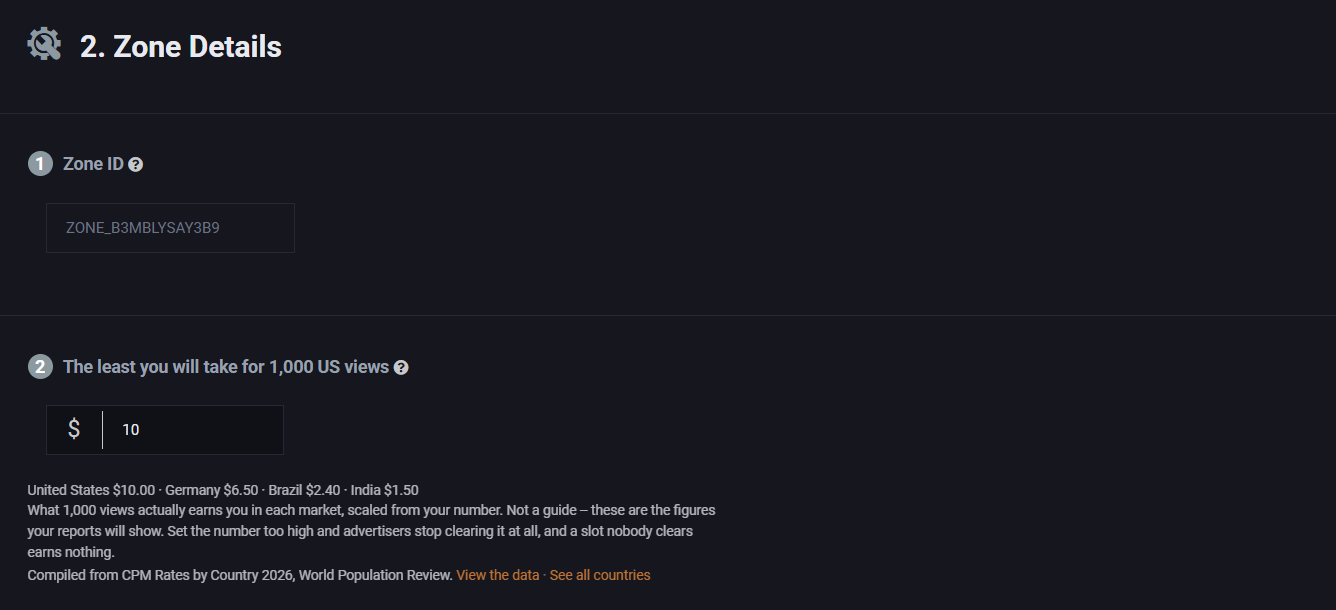
Name is for you. Call the slot something you will recognise in six months: "Homepage Leaderboard" or "Article Sidebar MPU". Leave it empty and it is called by its format and size, like Static Banner 300x250. Only you see it, and you can change it later.
The least you will take for 1,000 US views is the floor: the least you will accept for a thousand views of this slot from the United States. Set it to $2 and any advertiser bidding less is simply not shown here. The field is required, so there is no leaving it blank and taking whatever turns up.
Setting a floor too high is the most common way to end up with an empty ad slot, so start low. You can raise it later once you know what advertisers are actually willing to pay, which the reports will tell you.
That one number is the only one you set. A view from the United States is worth several times one from most other places, and rather than ask you to price the world the form prices it for you: every other country is a share of what you typed, listed under the field as you type it. A $2.00 floor is $1.30 in Germany and $0.48 in Brazil, and no view there sells for less.
If you run the network yourself, those shares are yours to change. Country prices, in the admin area, sets them for every slot on your network at once, and it is the right level for them: an advertiser's bid is scaled by the same share your floor is, so moving one moves both. What no setting does is give a single slot its own price in a single country.
Fallback: what shows when nothing sells
Some of the time no advertiser will want your slot. You choose what happens then:
- Nothing. The space collapses and your page looks normal.
- Advertise Here. Shows a house ad inviting people to buy the slot. Free advertising for your own network, and what a new slot starts on.
- Upload your own. Your own picture, your own link.
- Your existing ad code. Paste in a tag from another network so an empty slot falls through to them instead of wasting the view. One unsold view in ten shows your Advertise Here card instead, so visitors still find out they can advertise with you. To keep every one on your code, untick Show my Advertise Here card on 1 unsold view in 10.
Step 3. Get the code

Step 3 says "please submit the form to get your zone tag" and shows nothing else. That is not a fault. The tag contains an ID that does not exist until the zone is saved, so there is nothing to show yet.
Press Submit. The zone is created and the tag appears. Copying it onto your site is the next page: Put the tag on your site.
Changing a zone later
Open Zones from the menu. Every zone you have made is listed with what it has earned. The buttons on the right of each row let you view the tag again, change the zone's settings, or delete it.
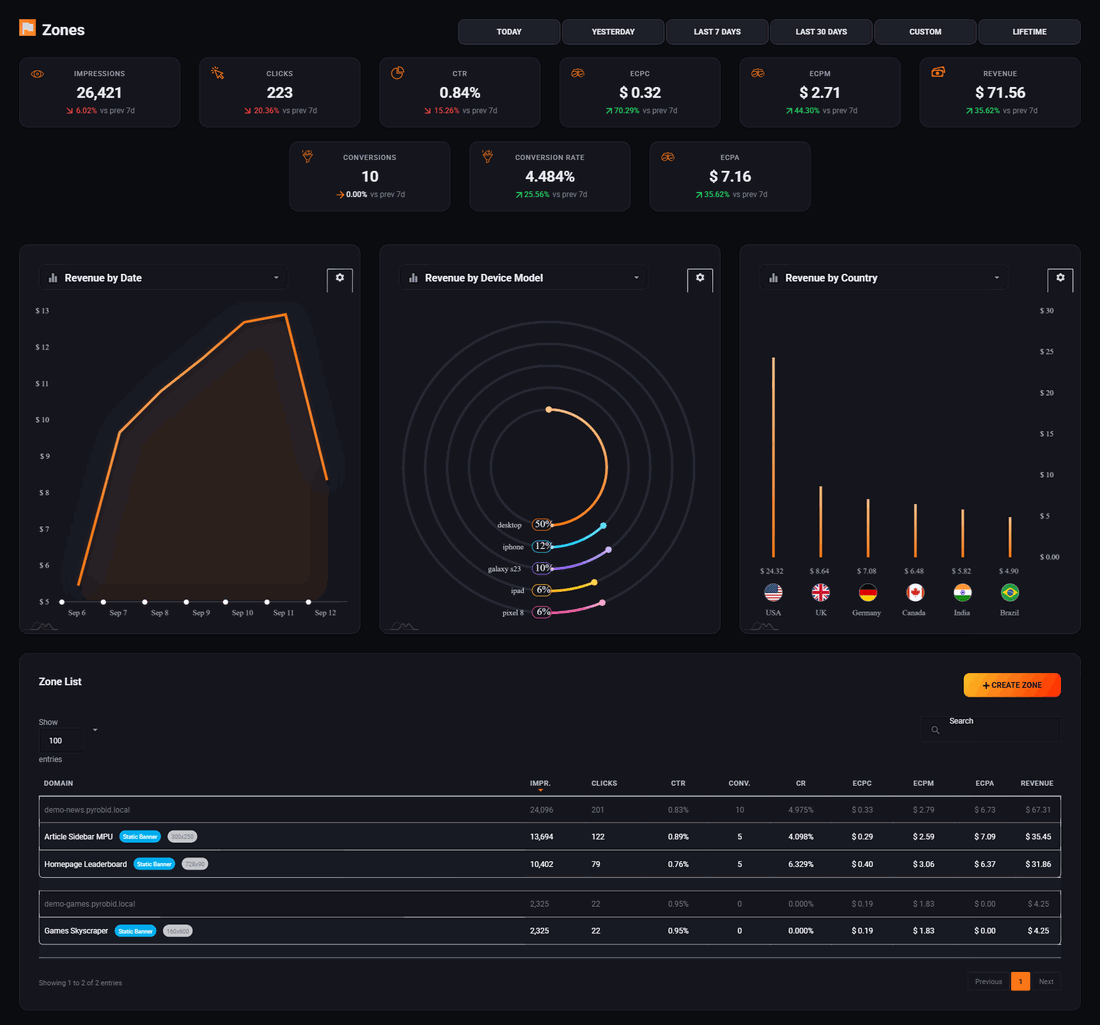
Changing the name or the floor price is safe and takes effect straight away. You do not need to touch the tag on your website again. Changing the size is different: the tag is tied to the size, so change it and advertisers whose artwork no longer fits will stop appearing.
Run all of this on your own site.
Every screenshot above is the real product. Your advertisers see the same screens under your brand, and on your own domain from the Pro plan.
Start free trial14 days free. Your existing ads keep running. Cancel anytime.