For site owners
How your ad network works
The three kinds of user, the words you will keep seeing, and how an ad reaches your page.
This page explains what your ad network is and how money moves through it. It takes about four minutes to read. Everything else in the help centre assumes you have read this one.
Just signed up? The setup screen you land on the first time you log in gets you running in about ten minutes: your brand, a first ad slot, the code for your site and your advertiser sign-up link. Quick start is the same four steps, to read first or to come back to. This page is the why behind them.
The short version
You own a website. Businesses pay you to show their ads on it. This platform is the machinery in between: it takes their money, picks which ad to show each visitor, counts what happened, and keeps the books.
There are three kinds of people in the system.
| Who | What they do |
|---|---|
| You, the network owner | Run the place. Decide which ads are allowed to run, set the prices, and get paid. |
| Publishers | Own the websites where ads appear. On most networks that is just you. If you let other site owners join, they are publishers too. |
| Advertisers | Pay to have their ads shown. They sign up, put money in, build an ad, and wait for you to approve it. |
Six words you will keep seeing
- Zone
- A space on your website where an ad can appear. A banner across the top of your homepage is one zone. A square in the sidebar is another. Some systems call this an ad slot or a placement.
- Tag
- A short piece of code you paste into your website. It is what makes a zone actually show ads. You get one per zone.
- Impression
- One ad, shown once, to one person. If a thousand people load your homepage, that is a thousand impressions.
- CPM
- The price for a thousand impressions. It stands for cost per mille, mille being Latin for thousand. A $2 CPM means the advertiser pays two dollars every time their ad is shown a thousand times.
- CTR
- Click through rate. Out of every hundred people who see an ad, how many click it. A CTR of 0.84% means roughly eight clicks for every thousand views. That is normal. Anything above 2% is unusually good.
- eCPM, eCPC and eCPA
- The same measures, seen from the other side of the deal. An advertiser sets a CPM: the most they are willing to pay for a thousand views. A publisher earns an eCPM: what a thousand views turned out to be worth once the auction had actually run. The e is for effective, and it means measured afterwards rather than agreed in advance. That is why the publisher screens say eCPM, eCPC and eCPA and the advertiser screens say CPM, CPC and CPA. Nobody chooses the first set, they are what happened.
How a single ad actually gets onto your page
- You make a zone. You tell the system where on your site the ad goes and what size it is.
- You paste the tag. The system hands you a few lines of code. You put them on your page where you want the ad.
- An advertiser signs up and puts money in. They land on your signup page, create an account, and top up their balance.
- They build an ad and submit it. They upload their picture, choose who should see it, and say what they will pay.
- You approve it. Nothing runs until you say yes. This is the important one. Your site, your call.
- It runs. The next time somebody loads your page, the tag asks the server for an ad and the server sends theirs.
- You both see the numbers. Within a few minutes the dashboard starts filling in.
What your dashboard is telling you
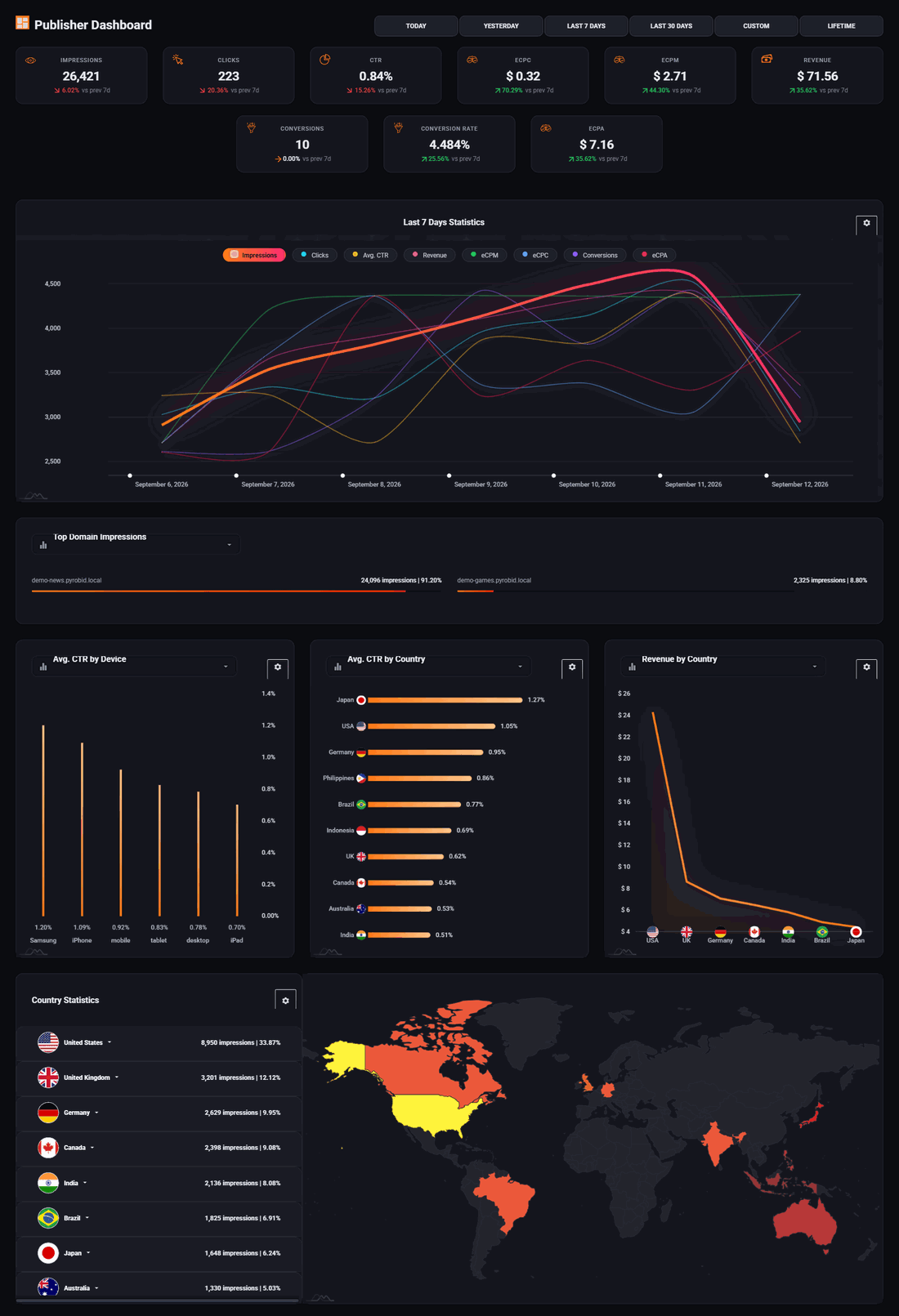
The row of boxes across the top is the summary. Impressions is how many ads were shown, clicks is how many were clicked, revenue is what you earned. Each box also shows a small arrow comparing it to the previous week, so you can tell at a glance whether things are going up or down.
The buttons above them, from Today through to Lifetime, change the period every number on the page refers to. The big chart underneath plots the same figures day by day. Click any label above the chart, Clicks or Revenue or any of the others, to add that line or take it away.
If your dashboard is all zeros, nothing is wrong. It fills in once you have a zone, a tag on your site, and an approved ad. A brand new network shows zeros until the first visitor loads a page with your tag on it.
Your account, and how the system reaches you
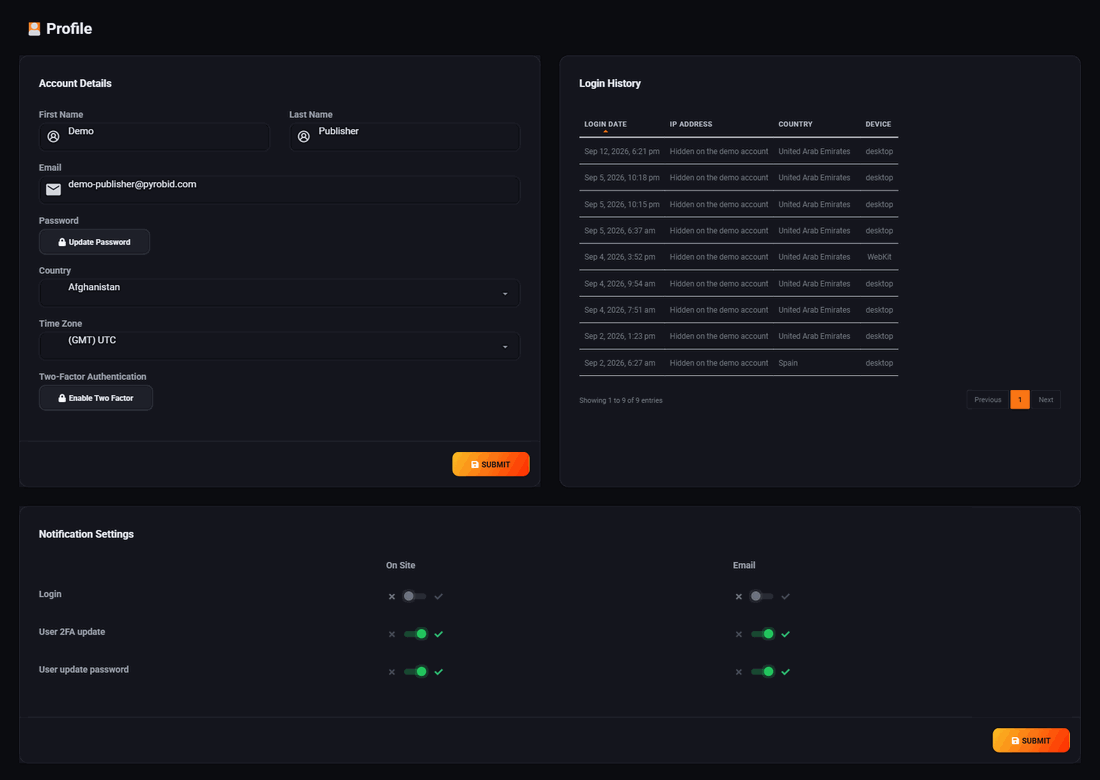
Profile holds three things worth knowing about on your first day.
- Account details
- Your name, your email and your time zone. The time zone is the one that matters most, because every report and every chart on the site is drawn against it. Set it before you start reading numbers, not after.
- Login history
- Every sign in, with the date, the country and the kind of device. Worth a glance now and then. It is the first place a sign in you did not make would show up.
- Notification settings
- One row per event, with a switch for on site and a switch for email. Turn on what you want to be told about and leave the rest off.
Enable Two Factor is on the same screen. Your account holds other people's money and decides what runs on your sites, so switch it on.
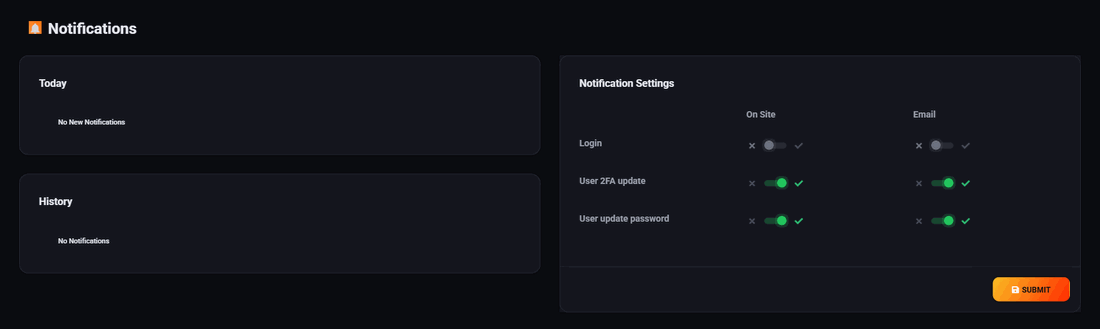
The bell in the top bar is where on site notifications land, and Notifications in the menu is the full list, today and history, with the same settings repeated on the right. The first thing that normally arrives is an advertiser submitting an ad for you to approve.
Two views, one login
You run the network and you own the site, so your account has two views. Switch between them with the Admin / Publisher toggle at the top of every page. On a phone it is in the account menu, top right.
- Admin: run the network
- Advertiser accounts, ad approval, vouchers, every campaign, and your branding, country prices and payments.
- Publisher: your ad slots
- Make slots, copy their code, change a slot's price or what shows when nothing is booked, and see what each one earns.
If a page says it is not available to you, you are probably in the other view. The page offers a button to switch.
What to do next
Work through the pages in order. The whole path from empty account to a live ad takes about twenty minutes, most of which is waiting for an advertiser.
Run all of this on your own site.
Every screenshot above is the real product. Your advertisers see the same screens under your brand, and on your own domain from the Pro plan.
Start free trial14 days free. Your existing ads keep running. Cancel anytime.